Image Cropper
Crop Photos Easily – Free Online Image Cropping Tool


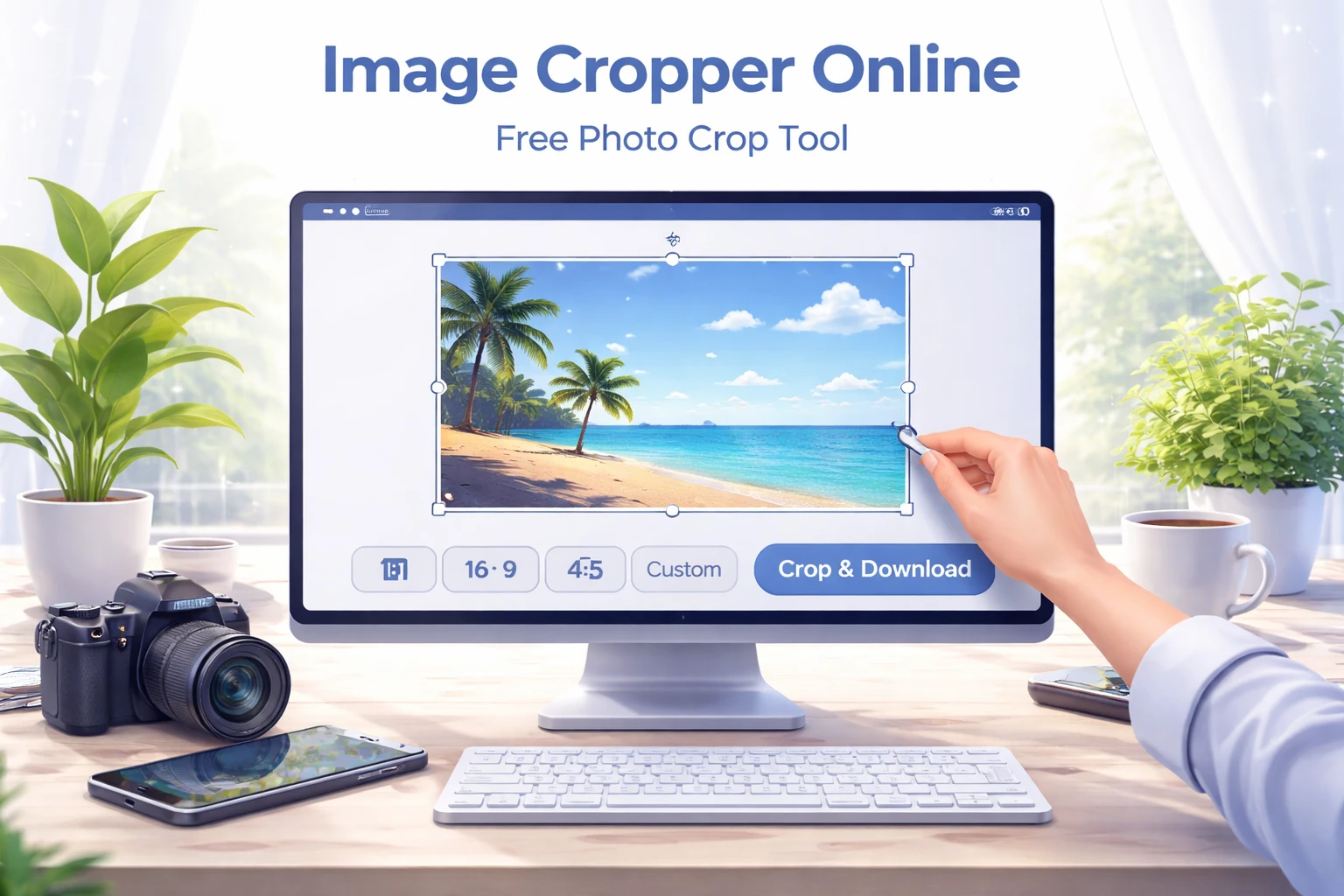
Image Cropper Online – Free Photo Crop Tool
By Chandu | Updated on January 2026 | Free Image Tool
image cropper online is the fastest way to trim your photo to the exact part you need when the image is too big, has extra background, or doesn't fit the required dimensions for a form, website, or social media post. A free online image cropper solves real problems: a government portal rejects your passport photo because the framing is wrong, an ID card photo crop needs a clean face shot, your profile picture looks zoomed out on social media, or your website banner cuts off important parts when you upload it.
These issues are more common than most people think. Students need quick crops for exam forms and college portals. Designers need images in exact ratios like square or 16:9. Bloggers need featured images that fit their site layout. Website owners need thumbnails that look consistent. ChanduSEOTool's Image Cropper Online gives you a simple solution: upload your image, drag the crop box to select the area you want, crop instantly, and download the final result. It's browser based, works with no signup, and takes less than a minute for most photos.
This tool is built for students, designers, bloggers, and website owners who want instant crop without complicated software.
Table of Contents
What is Image Cropper?
An image cropper is a tool that removes unwanted outer parts of a photo and keeps only the area you select. Think of it like cutting a printed photo with scissors—you keep the good part and discard the rest. Cropping is different from resizing because resizing changes the entire image dimensions, while cropping changes what content is included in the frame.
People crop images for many practical reasons:
- Passport and ID photos: Government portals and job applications often require specific face framing with minimal background. An image cropper passport size workflow helps you center the face, remove distractions, and match requirements.
- Social media posts: Platforms like Instagram prefer square images, stories need vertical crops, and cover photos need wide aspect ratios. Using crop photo for instagram before uploading gives you control over what appears in the final post.
- Website images: Blog featured images, product thumbnails, and banner graphics all need consistent sizing. A photo cropper online helps website owners create uniform visuals across pages.
- Profile pictures (PFP): When you crop image for profile picture, you need tight framing because most platforms display these inside circles or small squares.
The main advantage of using a free image cropper instead of full editing software is speed. You don't need to learn complex menus or install anything. Open the tool, select the area, crop, download—done.
Typical users include students submitting photos for exams and applications, designers preparing assets for clients, bloggers creating featured images, and anyone who needs a quick crop for an upload that has strict requirements.
Why Use Image Cropper?
For Students
Students face strict photo requirements for college portals, competitive exams, and job applications. Many forms ask for passport-style photos with specific head positioning and background rules. When your selfie has too much background or your face is not centered, the portal rejects it. With image cropper free online, you can quickly adjust the framing on a laptop or even on your phone without needing professional software. This is especially useful in computer labs where you cannot install apps.
For Website Owners
Website owners deal with hundreds of images—product photos, blog thumbnails, category banners, and homepage visuals. When images have inconsistent sizing, the site looks unprofessional. A free photo cropping website helps you create uniform visuals quickly. For example, if your product page uses square thumbnails, you can use image cropper to square to make every product photo match. If your blog needs 16:9 featured images, using image cropper to 16:9 ensures consistency across all posts.
Many website owners also use an image cropper and resizer together: first crop to keep the important part of the image, then resize to hit exact pixel requirements.
For Designers
Designers work with strict aspect ratios and pixel dimensions. Clients often request assets in specific sizes—social media graphics, ad banners, email headers, and app screenshots. Using image cropper to ratio saves time because you can quickly match common ratios like 1:1, 16:9, 4:3, or custom dimensions. When a platform requires exact pixel cropping, crop image by pixel gives the precision needed for professional work.
Designers also appreciate tools that preserve quality. Cropping trims the frame without re-compressing or distorting the image, so the output stays sharp.
For Social Media Users
Social platforms auto-crop images in previews, which often cuts off faces, text, or important parts of the photo. If you want control over what appears, use crop image online before uploading. This is critical for posts where text or faces need to stay visible. Profile pictures are another common use case—since most platforms show these inside circles, you need to crop image for profile picture tightly so the subject stays centered and recognizable even in small sizes.
For content creators, cropping also helps with storytelling. Removing distractions and focusing on the main subject makes photos more engaging and professional.
How to Crop Image Online
Step 1: Open Tool
Go to ChanduSEOTool and open the Image Cropper Online page. The tool runs in your browser, so there is no download or installation. This makes it convenient for quick edits on any device.
Step 2: Upload Image (JPG, PNG, WebP, JPEG)
Click the upload button and select your photo. Most people upload JPG or JPEG photos from cameras and phones. PNG is best for graphics, logos, and images with transparency. WebP is a modern format that works well for web images. Make sure the file is not corrupted—if upload fails, try re-saving the image from your gallery or editor.
Step 3: Select Crop Area (Drag & resize)
After uploading, you will see a crop selection box overlaid on your image. Drag the box to position it over the area you want to keep. Use the corner handles to resize the crop area. Take a few seconds to align the subject properly—especially for face photos, ID card photo crop, or passport photos where centering matters.
Practical cropping tips:
- For passport photos: Center the face, leave some space above the head, and include shoulders. Avoid cropping too tight.
- For ID cards: Use a clean head-and-shoulders frame with minimal background.
- For profile pictures: Keep the face or logo centered because many apps display these in circles.
- For Instagram: If posting a square image, keep the main subject in the center to avoid awkward edge cuts.
If the tool supports fixed ratios, select the one you need—like square for social media posts or 16:9 for banners. This is useful when you want image cropper to dimensions that match platform requirements.
Step 4: Crop Image (Click crop button)
Click the crop button to generate the output. The tool processes the image instantly and shows you the result. If the crop is not perfect, adjust the selection box and crop again before downloading.
Step 5: Download (Save final image)
Download the cropped image to your device. The tool creates a new file, so your original photo remains untouched. Rename the file clearly (example: profile-pic-cropped.jpg) to avoid confusion later.
Extra tips:
- Keep aspect ratio: Lock the ratio when the platform expects a specific shape like square or 16:9.
- Use zoom option: If available, zoom in for precise framing—especially useful for small details.
- Pixel cropping: If you need exact dimensions, crop first for framing, then use an image cropper resizer to set exact pixels.
Key Features
- 100% Free: This image cropper free tool is designed for everyday use without subscriptions or payments.
- No Signup: Free online photo cropping works instantly without creating an account.
- Mobile Friendly: Crop image on mobile using touch controls on any modern browser.
- Fast Tool: Upload, crop, and download typically take less than 30 seconds.
- Secure: For best privacy, use your own trusted device and internet connection. Avoid uploading highly sensitive images to any online service.
- No Watermark: Output images are clean and ready for professional use.
- HD Output: Cropping preserves the quality of the selected area because it trims the frame without re-compressing.
Supported Formats
ChanduSEOTool's free photo cropping website supports the most commonly used image formats:
- JPG / JPEG: Standard format for photos from cameras and phones.
- PNG: Best for graphics, logos, and images with transparent backgrounds.
- WebP: Modern web format that balances quality and file size.
- GIF: Useful for simple graphics and animations.
If an upload fails, verify the file format and ensure it is not corrupted. Re-exporting from an editor often fixes upload issues.
Common Issues & Fixes
Problem: Image not uploading.
Check that your file is JPG, PNG, JPEG, WebP, or GIF. Large files may take longer—try resizing first if the file is very big. On mobile, ensure browser permissions allow file access. Switching browsers (Chrome, Firefox, Edge) often solves upload problems.
Problem: Wrong crop size after downloading.
If the platform needs a specific ratio, use image cropper to ratio settings. If it needs exact pixels, crop for framing first, then use crop image by size with a resizer to match exact requirements.
Problem: Download is slow or not starting.
Slow internet or browser blockers can prevent downloads. Disable strict ad blockers temporarily and retry. On mobile, check storage space and download permissions in settings.
Problem: Cropped photo looks low quality.
Cropping itself does not reduce quality, but if you crop a small area and later enlarge it significantly, pixelation may appear. Always start with a high-quality original photo and avoid cropping too tight if you need a large final output.
Problem: Portal still rejects passport photo.
Some portals have strict rules for dimensions, file size, and background color. After you crop passport photo online, verify the portal requirements and resize to exact pixels and file size if needed.
FAQs
Is tool free?
Yes. This is a free image cropper that works in your browser. Crop and download as many images as you need without paying or subscribing.
Is data safe?
For best privacy, use the tool on your own trusted device and secure internet connection. Avoid uploading highly sensitive personal images to any online service. For everyday photos like social media images and documents, the workflow is quick and practical.
Passport photo crop possible?
Yes. You can use image cropper to passport size to create a proper face frame. Crop to center the face with appropriate spacing above the head and include shoulders. If the portal requires exact dimensions, crop first for framing, then resize to match required pixels.
Mobile support?
Yes. You can crop image on mobile using a modern browser. Upload from your gallery, use touch controls to adjust the crop box, and download the final image. Large images may process faster on desktop.
Quality loss?
Cropping normally does not reduce quality because it trims the image without compressing it. Quality issues happen when the original photo is blurry or when a small cropped area is enlarged significantly later.
Account needed?
No. This image cropper free online tool works without signup. Open, upload, crop, and download immediately.
Most Useful Image Tools by ChanduSEOTool
After cropping, you may need other image edits like resizing, compressing, format conversion, or rotation. These tools complete your workflow:
Conclusion
Image Cropper Online by ChanduSEOTool is a simple, beginner-friendly way to crop photos for passports, ID cards, profile pictures, social media, and websites without installing software. Upload your image, drag to select the crop area, crop instantly, and download a clean result. It works with no signup, saves time, and keeps your workflow simple whether you are on desktop or mobile.

Popular Tools
Recent Posts


