Image to Base64
Free online tool to convert images into Base64 code instantly – no login required.



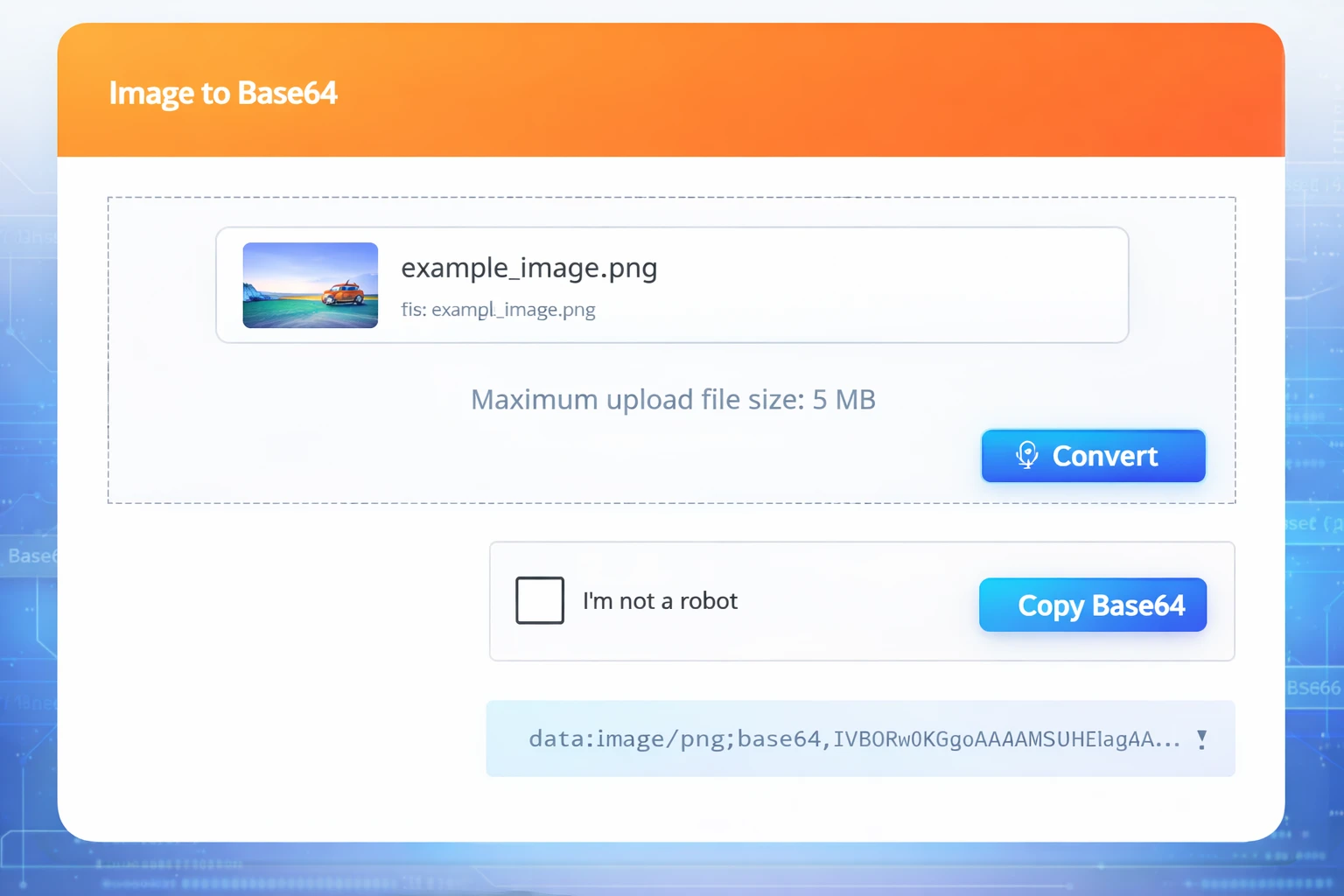
Convert Image to Base64 Online – Free Image Encoder Tool
By Chandu | Updated on January 2026 | Free Image Tool
convert image to base64 online is a simple way to turn an image file into a text-based Base64 string when you can’t upload files directly or when you need an “inline” image for code. A free online image to base64 converter is especially helpful for developers and website owners who need fast results without installing software or creating an account.
This situation is common in real projects: an API accepts only JSON (no file uploads), an email template needs an embedded image, or a form system blocks attachments but allows text fields. Instead of searching for a desktop encoder or writing scripts, you can use ChanduSEOTool to upload an image, generate Base64 instantly, and copy the output. The tool is browser-based, beginner-friendly, and designed for quick copy-paste workflows.
It’s useful for developers, students, designers, and website owners who want a clean, reliable way to encode image to base64 without extra setup.
Table of Contents
What is Image to Base64?
Base64 is a way to represent binary data (like an image) as plain text. When you “encode” an image into Base64, the output becomes a long text string that contains the same data as the original file, just in a text-friendly format.
That matters because many systems are great at handling text but not file uploads. For example, a JSON API request, an HTML file, a CSS file, or some email builders may work better with inline text than with separate image files. An image to base64 converter takes your PNG/JPG/WebP/GIF and converts it into a Base64 string you can copy and use where needed.
Common places where Base64 images are used include:
- APIs: Sending an image as a string inside JSON when file upload endpoints aren’t available.
- HTML: Embedding images inline using a data URL (useful for small icons or quick demos).
- CSS: Setting a background-image with a Base64 data URL (often for tiny UI graphics).
- Email templates: Some workflows embed images to avoid external hosting or blocked resources.
Who uses it? Mostly developers, but also designers working with email templates, students learning web development, and website owners building lightweight pages or testing layouts.
Why Convert Image to Base64?
For Developers
Developers often need to convert image to base64 online when building APIs, forms, or apps that accept only text payloads. Instead of handling multipart uploads, you can paste a Base64 string into JSON and process it server-side. It’s also useful when creating quick prototypes, documentation pages, or demo snippets.
For Website Owners
Website owners use an image to base64 converter to embed small images directly in HTML or CSS—especially icons, badges, or tiny UI elements. This can help reduce setup steps when you don’t want to host an image file separately for a quick landing page test or a simple widget.
For Students
If you’re learning web development, Base64 is a practical concept to understand. You may be asked to embed an image in HTML, submit a JSON assignment, or build a small project that stores images as strings. Using a base64 encode image online free tool lets you focus on learning instead of struggling with scripts.
For Designers
Designers sometimes need Base64 when working with email templates, exported HTML, or small components that must be portable. If you give a developer a single HTML file preview, using a small image as Base64 can help. This makes the preview easier to share and open.
In short, when you need a quick, copyable string, convert image to base64 online is the most direct approach—especially when you want image to base64 online free without software.
How to Convert Image to Base64 Online
Step 1: Open Tool
Open ChanduSEOTool and visit the “Convert Image to Base64 Online” tool page. The tool runs in your browser, so there’s no signup, no installation, and no extra setup required.
Step 2: Upload Image
Click the upload button and choose your image file. This tool is designed to work with common image formats such as PNG, JPG, JPEG, WebP, and GIF.
If you are converting a logo or icon, PNG is usually a great choice. If your image is a photo, JPG/JPEG can be smaller in size while still looking good.
Step 3: Convert
Click the convert button to generate the Base64 output. Most conversions take only a few seconds, depending on the file size and your device.
Step 4: Copy Base64 Code
Once the tool generates the output, you will see a Base64 string. Copy it using the copy button (if available) or select and copy the text manually.
Sometimes you may also see a “data URL” format, which looks like:
data:image/png;base64,AAAA...
This “data URL” version is convenient for HTML and CSS because it already includes the image type plus the Base64 data.
Step 5: Use Anywhere (HTML, API, CSS)
Here are simple ways to use the Base64 output:
- HTML inline image:
<img src="data:image/png;base64,PASTE_HERE" alt="Embedded image" /> - CSS background image:
background-image: url("data:image/png;base64,PASTE_HERE"); - API / JSON payload:
Send it as a field value like"imageBase64": "PASTE_HERE"(follow your API’s expected format).
Extra tips:
- Keep the original image file saved as a backup, especially if it’s a final asset.
- If the Base64 output is too long, compress or resize the image first to reduce size.
- Prefer PNG for icons and images needing transparency; prefer JPG for photos to keep file size smaller.
Key Benefits
100% Free
This tool is made for everyday use. You can convert images to Base64 without paying, without trials, and without complicated limits. It’s a practical option for quick work and learning projects.
No Signup
You don’t need to register or share your email. The workflow stays simple: upload, convert, copy, and use the result wherever you need it.
Instant Conversion
Most images convert in seconds. This is helpful when you’re testing an API request, building a template, or working against a deadline and need a Base64 string right now.
Privacy Safe
Many users encode images that are part of a project or brand kit, so privacy matters. Use this tool on your own device and a trusted network, and avoid uploading anything highly sensitive to any online service. For everyday icons and web assets, the process is quick and straightforward.
Works on Mobile
If your phone browser supports uploading and copying text, you can use the converter on mobile. This is helpful when you’re away from your computer but still need a Base64 string for a quick fix or test.
No Watermark
Base64 output is plain text, so there’s no watermark or branding inside your result. You get clean output that you can paste directly into your code or tool.
Clean Output
The tool focuses on readable, copy-friendly output. This makes it easier to paste into HTML, CSS, or JSON without reformatting the string again and again.
Common Issues & Fixes
Problem: File not uploading.
Make sure the file is a supported format (PNG, JPG, JPEG, WebP, GIF). If the file is too large, try resizing or compressing it first. Switching browsers or disabling strict extensions can also help.
Problem: The output is too long.
Base64 strings can become very large because they represent the full image data as text. Use a smaller image, compress it, or switch to JPG for photos. For websites, large Base64 images can slow pages down.
Problem: Browser becomes slow or hangs.
Very large images can stress the browser. Reduce image dimensions, compress the file, or try on a computer instead of a phone. Closing other tabs can also improve performance.
Problem: Conversion feels slow.
Check your device speed and file size. For typical images, conversion is quick. If your image is several megabytes, compress it first and try again for faster results.
FAQs
Is this tool free?
Yes. You can convert image to base64 online for free without paying or subscribing. It’s designed for quick conversions when you need an image string for HTML, CSS, or API usage.
Is my data safe?
The safest approach is to avoid uploading highly confidential images anywhere. For normal web assets like icons and photos, this tool is designed for quick conversion and copy. Use a trusted device and network for best safety.
Which formats are supported?
You can typically encode PNG, JPG, JPEG, WebP, and GIF. If a file fails, confirm it’s a real image file (not renamed) and try exporting it again from your editor before uploading.
Can I use it on mobile?
Yes. If your mobile browser supports file upload and you can copy text easily, you can use the tool on your phone. For very large images, a desktop browser may work more smoothly.
Will quality change after conversion?
Base64 encoding does not “improve” or “damage” image quality by itself. It is just another way to represent the same image data as text. If you compress or resize before encoding, that can affect quality.
Do I need an account?
No. This is an image to base64 no signup tool. You can open it, upload an image, convert it, and copy the Base64 string immediately.
Most Useful Image Tools by ChanduSEOTool
If you work with images regularly, these tools can help with other common tasks like converting formats, resizing, and preparing icons:
Conclusion
Convert Image to Base64 Online is a practical tool when you need an image as a text string for APIs, HTML, CSS, or templates that don’t accept file uploads. It’s free, fast, and beginner-friendly, with no signup required. Upload your image, convert it in seconds, copy the Base64 output, and use it wherever your project needs it.
Try Convert Image to Base64 Online
Encode your images instantly – free, secure & no signup.
Open Tool →
Popular Tools
Recent Posts


