Image Resizer
Compress Photo to 50KB Without Quality Loss

Resize Image



Resize Image to 50KB Online – Free Photo Compressor
By Chandu | Updated on January 2026 | Free Image Tool
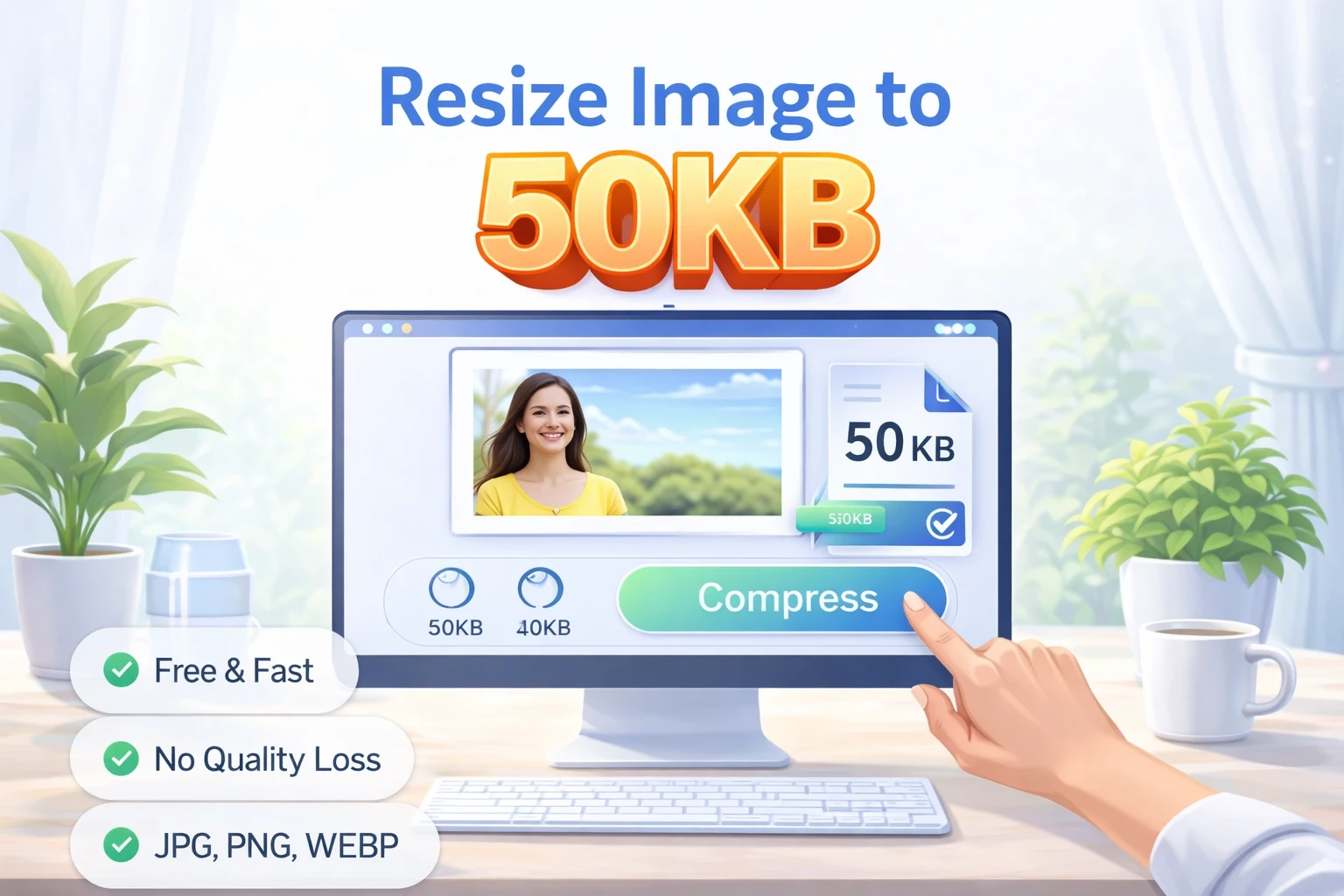
resize image to 50kb is a very common requirement on government portals, job websites, and online forms where they fix a strict file size limit for photos and signatures. This tool page is designed to help users quickly understand how to use a free online image resizer to match that 50KB requirement without confusion.
Many users face real problems: a govt form rejects the photo again and again because the file size is too large, a job application asks for a 50KB passport photo, or an email attachment bounces back because the total size is above the allowed limit. In all these cases, you don’t really want to edit the image content, you just need to compress image to 50kb or reduce image size to 50kb so that the upload works. The “Resize Image to 50KB Online” tool by ChanduSEOTool makes this simple. It is browser based, needs no signup, and gives instant results for students, job seekers, developers, and photographers who need a fast solution.
Table of Contents
What is Resize Image to 50KB?
When you resize image to 50kb, you are changing the file size of the picture so that the saved image takes around 50 kilobytes of storage. File size is measured in bytes, kilobytes (KB), and megabytes (MB). Roughly, 1,000KB is 1MB, so 50KB is a very lightweight image suitable for online forms and simple display.
It is important to understand the difference between file size and resolution. Resolution means how many pixels your image has, for example 800×600 or 1000×1000 pixels. File size is how “heavy” the file is on disk. A photo can have high resolution but still be small in KB if compressed strongly, or small resolution but large KB if saved with low compression. When you resize photo to 50kb, the tool mainly adjusts compression and sometimes dimensions so that the output image sits near the 50KB target.
Real life examples:
- A student has a 450KB passport photo but the exam portal only accepts up to 50KB. They need to resize image to 50kb for govt form submission.
- A job seeker wants to upload a professional headshot, but the application portal says “Upload image below 50KB only.” In this situation, resize image to 50kb online free is the quickest fix.
- Someone wants to email multiple images to a friend but the mail service shows “attachment too large.” Compressing each photo to around 50KB makes it easier to send.
Why Resize Image to 50KB?
For Government Forms
Government websites often specify strict file size ranges for photographs and signatures. A common rule is that the candidate’s photo should be between 20KB and 50KB, and the signature between 10KB and 20KB. If your photo is larger, the form refuses to submit. Using resize image to 50kb for govt form helps you meet these rules without needing expensive editing software. You simply upload the image, choose 50KB as target, and download the adjusted file.
For Job Applications
Job portals (especially for government jobs and competitive exams) also use fixed limits. They may ask you to resize passport photo to 50kb or submit a specific KB range for your profile image. A small, optimized image also makes the application page load faster. When you resize jpg to 50kb or resize png to 50kb, you make the upload smoother while still keeping your face visible and clear enough for identification.
For Email Attachments
Email services usually have a total attachment limit. When you send multiple high-resolution photos straight from your phone, the total size can be very high. By choosing to compress image to 50kb per photo, you can attach more images in a single mail and make the email open quickly even on slow connections. It is especially useful when sending documents or ID proofs to offices where they download files on low bandwidth connections.
For Website Uploads
Website owners and developers often set strict image limits to keep pages fast. Uploading very heavy photos can slow down the site, which is bad for user experience and SEO. By using resize image to 50kb online, you can convert large camera photos into light-weight images suitable for contact forms, profile pages, or small thumbnails. Developers building forms and dashboards can recommend this tool to users to avoid “file too large” errors.
How to Resize Image to 50KB Online
Step 1: Open Tool
Visit ChanduSEOTool and open the “Resize Image to 50KB Online” tool. Everything runs in your browser, so there is no need to download software or install any app. The interface is kept simple for beginners.
Step 2: Upload Image
Click on the upload button and select your image from your device. The tool typically supports JPG, PNG, JPEG, and WebP. Photos clicked from smartphones are usually JPG or HEIC (on some devices), and screenshots or graphics may be PNG. If your file is WebP from a website, you can directly load that too.
Step 3: Select 50KB Size
After upload, you choose the target file size. Here you select resize image to 50kb. The tool may give you a slider or a direct option to type 50KB. Some tools also offer auto mode where they aim to compress image to 50kb while keeping as much quality as possible. If your portal has a range, such as “20KB to 50KB,” you can still target close to 50KB to use maximum acceptable quality.
Step 4: Click Resize
Once the target is set, click the resize or compress button. The tool processes the image and adjusts compression levels, and in some cases dimensions, to reduce image size to 50kb. Processing usually takes just a few seconds even on normal connections.
Step 5: Download
After processing, you can preview and download the resized image. The output will generally be in the same format as the original (JPG stays JPG, PNG stays PNG) unless the tool allows choosing a new format. Save the file with a clear name, like photo-50kb.jpg so you can easily pick it while uploading.
Extra tips:
- Always keep the original copy safe before resizing. In case you need a higher quality version later (for print or other uses), this backup will help.
- Try to avoid double compression. Instead of compressing an already compressed 50KB image again, go back to the original and generate a new version at the right size.
- If the form allows up to 100KB, you can use similar tools to resize image 50kb to 100kb when you want slightly better quality.
Resize Without Losing Quality
Many users worry about resize image without losing quality, and that is a fair concern. The truth is that some quality loss is natural when you compress an image heavily, but you can minimize it with smart steps.
First, understand that quality mainly depends on the original image. If your starting photo is sharp and clear, the compressed output at 50KB can still look good on screens. If your original is already blurry, no tool can magically fix it. The goal of the ChanduSEOTool 50KB compressor is to reduce size while keeping visible details as clean as possible for normal screen viewing.
Here are best practices to keep quality acceptable:
- Start from the best original: Use the original camera photo or the highest-quality version you have instead of a copied or forwarded image.
- Avoid unnecessary resizing of dimensions: If you only need to reduce the file size, try to keep the resolution reasonably close to the original. Dropping from 4000×3000 directly down to 400×300 may make the face too small.
- Don’t compress multiple times: Each time you compress a JPG, a bit of detail is lost. If you need different sizes, always go back to the original photo and create separate 50KB, 100KB, etc.
- Check preview before using: Zoom in slightly to see if the face and text remain readable. For govt forms, clarity is more important than perfect colors.
In some cases, you may want to adjust size only a little—for example resize image 20kb to 50kb if the portal has a minimum limit. In this case, the tool may reduce compression slightly or adjust format settings so that the file grows in KB while the image still looks clean.
Supported Formats
The “Resize Image to 50KB Online” tool is designed to work with the most commonly used image formats so that almost every normal photo can be compressed.
- JPG: Standard format for mobile camera photos and most digital cameras. You can easily resize jpg to 50kb for job applications and govt forms.
- PNG: Often used for screenshots, logos, signatures, and graphics. You can resize png to 50kb while keeping transparency for simple designs.
- JPEG: Technically the same family as JPG; many photos use the .jpeg extension.
- WebP: A modern format common on websites. These can be compressed further when needed.
- HEIC: A format used by many iPhones. Some tools convert HEIC to JPG internally before resizing to 50KB so you can still use the result in forms that only accept JPG.
If your file is in a rare format, you can first convert it using other image tools (like JPG to PNG or WebP converter) and then use this 50KB resizer for final adjustment.
Common Issues & Fixes
Issue: File not uploading
Make sure the file is actually an image (JPG, PNG, JPEG, WebP, or HEIC). Sometimes a renamed document with a .jpg extension will not work. If upload still fails, try refreshing the page or using a different browser. On mobile, check storage permissions for the browser.
Issue: Size is not exactly 50KB
Image compression is sometimes approximate. The tool tries to get as close as possible to 50KB, for example 49KB or 52KB. If your portal is very strict, you may need to run one more attempt or slightly adjust the target. For most forms, a small difference is accepted as long as it stays within their range.
Issue: Processing feels slow
If your starting photo is extremely large (for example 8–12MB), it may take longer to process, especially on slow connections. In that case, close unnecessary tabs, ensure a stable internet connection, and wait a few seconds for the tool to finish. On very low-end mobile devices, using a desktop or laptop can be faster.
Issue: Browser problem
Ad blockers, privacy extensions, or outdated browsers can sometimes interfere with file handling. If the tool is not working as expected, try opening it in another browser such as Chrome, Edge, or Firefox. Clearing the cache or using an incognito window also helps in some cases.
FAQs
How to resize image to 50KB?
Open the “Resize Image to 50KB Online” tool on ChanduSEOTool, upload your photo, set 50KB as the target size, click on the resize button, and download the processed image. Use the downloaded file while submitting forms or uploading to websites.
Is tool free?
Yes, you can resize image to 50kb free using this tool. There is no payment or subscription required, and you can process multiple images whenever needed.
Will quality reduce?
Some compression is needed to reduce image size to 50KB, so a small quality change is natural. However, for normal screen use and online forms, the image usually remains clear enough. Starting with a sharp original photo always gives better results.
Can I resize JPG & PNG?
Yes, the tool supports both resize jpg to 50kb and resize png to 50kb. JPG is best for photos, while PNG is useful for graphics and signatures. You can try both formats depending on your use case.
Can I use on mobile?
Yes, you can resize image to 50kb on mobile using a modern browser. Just open the tool, upload a picture from your gallery, set the target, and download the resized photo back to your phone.
Is signup required?
No signup is required. The tool is designed for quick one-time tasks, so you can compress image to 50kb without creating an account or entering personal details.
Is data safe?
For everyday photos, this tool offers a simple upload–process–download flow. For best security, use it on your own trusted device and connection, and avoid uploading highly sensitive or private images to any online tool. Always keep copies of important original documents stored safely on your own device.
Can I resize for govt forms?
Yes, the tool is ideal when you need to resize image to 50kb for govt form submissions, entrance exams, ID portals, or job applications. Just check the portal’s size and dimension rules and create the image accordingly. If they later require 100KB, you can also resize image 50kb to 100kb using a similar method with a higher target size.
Most Useful Image Tools by ChanduSEOTool
If you often prepare images for online forms and websites, these related tools on ChanduSEOTool can make your workflow easier:
Conclusion
The “Resize Image to 50KB Online” tool by ChanduSEOTool is a practical solution for anyone who needs small, form-ready images without learning complex software. It lets you resize image to 50kb online in a few easy steps: upload, choose 50KB, click resize, and download. Whether you are a student filling exam forms, a job seeker uploading a passport photo, a developer managing uploads, or a photographer preparing light-weight previews, this tool saves time and reduces upload errors while keeping your photos clear enough for everyday use.

Popular Tools
Recent Posts


