Base64 Convert Image
Free Base64 to Image Converter Tool




S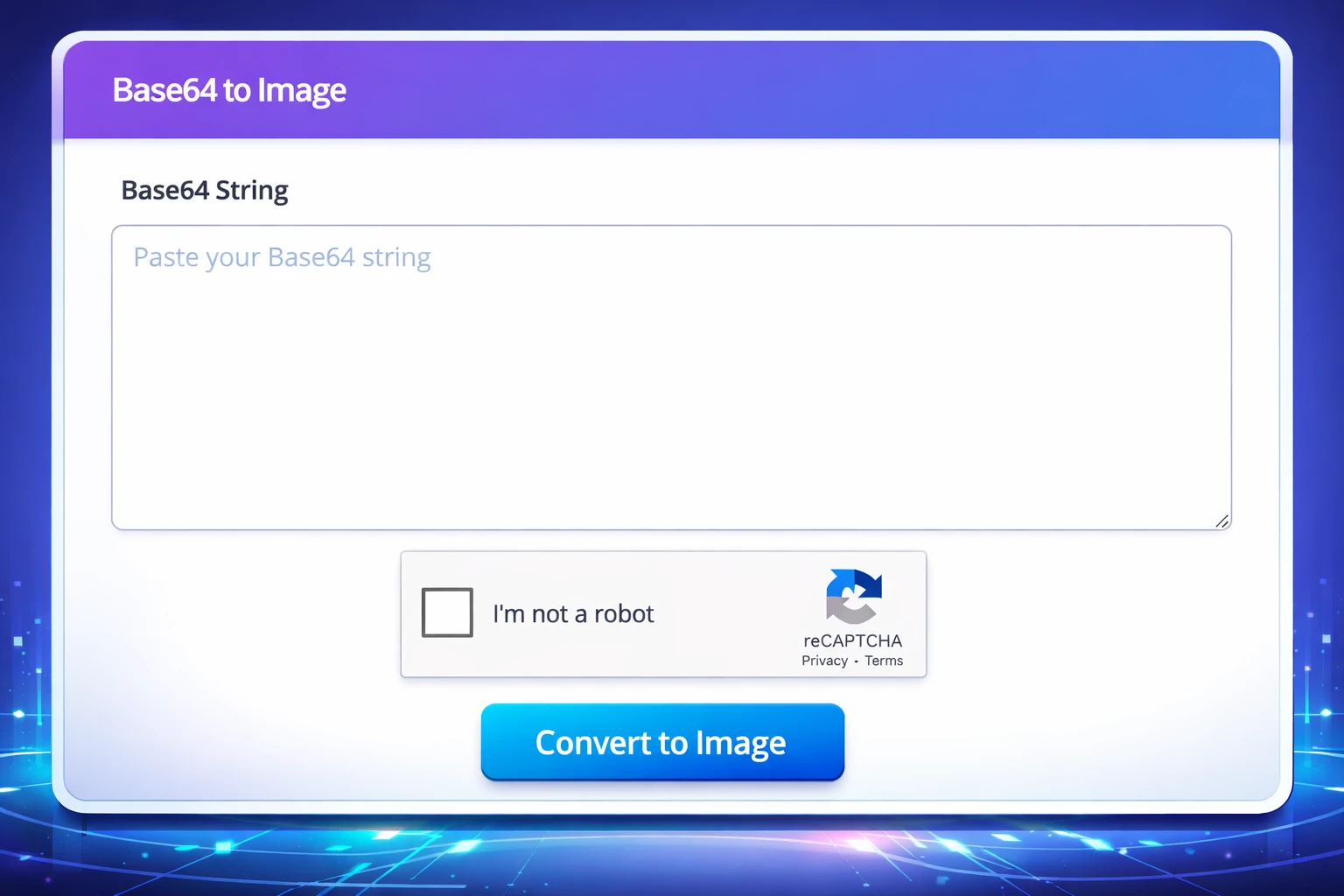
Base64 Convert Image Online – Free Image Decoder Tool
By Chandu | Updated on January 2026 | Free Image Tool
base64 convert image is the quickest way to turn a Base64 string back into a real image when an API or database returns image data as text instead of a file. A free base64 to image converter makes this process simple: paste the code, decode instantly, preview the result, and download the image without installing software.
This is a real, everyday issue for many people working with websites and apps. You might receive a Base64 string in an API response, see Base64 stored in a database field, or get a “data:image/…” string inside HTML or CSS. But you can’t easily view it, confirm it’s correct, or share it with someone. ChanduSEOTool’s Base64 Convert Image tool solves that by decoding the Base64 string in your browser and giving you an image preview and download option. No signup, no complicated steps, and it’s beginner-friendly.
It’s useful for developers, students, designers, and website owners who need a fast way to decode Base64 image strings and confirm what the output actually looks like.
Table of Contents
What is Base64?
Base64 is a method of representing binary data (like an image file) as plain text. Instead of sending or storing an image as a separate .png or .jpg file, a system can convert it into a long string of characters. That string can travel through places where files are inconvenient, but text is easy—like JSON APIs, database fields, and certain form submissions.
When images are encoded into Base64, they may appear in two common ways:
- Raw Base64 string: A long text value with letters, numbers, +, / and sometimes = at the end.
- Data URL format: Starts like
data:image/png;base64,followed by the Base64 content.
Base64 is used in real projects for API communication, debugging, quick previews, and sometimes in email templates or portable HTML files. Developers use it most often, but designers and website owners also encounter it when dealing with templates, embedded images, or third-party tools that output Base64.
In simple words: Base64 helps computers move image data as text. But humans need to convert it back to an image to actually see it.
Why Convert Base64 to Image?
For Developers
Developers often need to decode base64 image when debugging APIs or checking whether an image payload is correct. For example, an endpoint returns avatarBase64 in JSON, but you can’t tell if it’s valid or corrupted until you convert it to an image. A base64 image decoder helps you confirm the result instantly.
For Website Owners
Website owners may copy a Base64 string from a plugin, theme setting, or embedded code snippet and want to see what image it represents. If you’re updating a site icon, testing an embedded banner, or checking a stored logo, base64 convert image lets you quickly preview the output without touching code tools.
For Students
Students learning web development and APIs often see Base64 in assignments. You might be asked to convert base64 to image, verify output, or submit an image payload as a string. This tool makes it easy to decode Base64 and understand what the string actually contains.
For Designers
Designers sometimes work with email templates or exported HTML where images are embedded as Base64. If you receive a “data:image/…” block and want to preview it, a base64 to image converter is a quick way to check what the embedded image looks like before handing it off to a developer.
Overall, base64 convert image is mainly about clarity and verification: you stop guessing and immediately see the real image output.
How to Base64 Convert Image Online
Step 1: Open Tool
Go to ChanduSEOTool and open the Base64 Convert Image Online tool page. The decoder runs in your browser, so you don’t need to install anything or create an account.
Step 2: Paste Base64 Code
Copy your Base64 string from your API response, database, HTML, or app output. Paste it into the input box on the tool.
If your value starts with a header like:
data:image/png;base64,
you can usually paste it as-is. If the tool expects only the raw Base64 part, remove the header and paste only what comes after the comma.
Step 3: Convert
Click the convert/decode button. In most cases, decoding happens instantly. If your Base64 string is very large, it may take a few seconds for the preview to render.
Step 4: Preview & Download Image
After decoding, you should see a preview of the image. If everything looks correct, download the file to your device. This is helpful when you need to share the image with a teammate or upload it somewhere that requires a file.
Step 5: Use Anywhere (HTML, API, projects)
Once you have the decoded image, you can:
- Upload it to a website or CMS as a normal image file.
- Use it in your app assets for testing or UI previews.
- Compare it with the original file to check whether encoding/decoding is working properly.
Extra tips:
- Keep your original Base64 string saved while testing, so you can compare outputs if something fails.
- Remove spaces and line breaks from the string if it was copied from logs or formatted JSON output.
- Check the image type (PNG/JPG) if your Base64 comes with a data URL header—wrong headers can cause broken previews.
Key Benefits
100% Free
This tool is made for quick decoding tasks. You can use it without payment or subscriptions, which is ideal when you just need to preview and download an image from Base64.
No Signup
You can decode Base64 strings without creating an account. That keeps the workflow fast and reduces friction when you’re debugging or working on a quick project.
Instant Conversion
Most Base64 strings decode immediately. This saves time compared to writing scripts or setting up code just to preview an image output.
Privacy Safe
Base64 data can sometimes represent private images. For safety, use the tool on a trusted device and network, and avoid decoding highly sensitive personal content through any online service. For everyday project assets, icons, and test images, the workflow is quick and practical.
Works on Mobile
If your mobile browser supports copying and pasting large text, you can decode Base64 on your phone. This is useful for quick checks when you’re away from a laptop.
No Watermark
Your decoded output is a real image file, not a branded preview. The tool does not add any watermark to the downloaded image.
Clean Output
The goal is clear results: paste Base64, get a preview, download the image. This makes the tool useful for debugging, learning, and simple content workflows.
Common Issues & Fixes
Problem: “Invalid Base64 string.”
This usually happens when the string is incomplete or has extra characters. Copy the full string again. Remove spaces, line breaks, quotes, and commas if you copied it from JSON or logs. If the string starts with data:image/, try removing the header if needed.
Problem: The output image looks broken or half-loaded.
This often means the Base64 was cut off, especially if it was copied from a console with truncation. Make sure you have the complete value from your API/database. If possible, export the full field value before decoding.
Problem: Nothing previews after decoding.
Check whether the Base64 represents an actual image. Some systems encode PDFs or other files in Base64 too. Also confirm the header type if you’re using a data URL (PNG vs JPG mismatch can cause preview issues).
Problem: Preview is slow.
Very large Base64 strings can be heavy for the browser. If you only need a quick check, try decoding on desktop, or reduce the image size at the source before encoding it. Closing extra tabs can also help.
FAQs
Is this tool free?
Yes. You can use Base64 Convert Image Online for free to decode Base64 strings into a viewable, downloadable image file. There’s no signup required, which makes it suitable for quick debugging and everyday tasks.
Is my Base64 data safe?
For best safety, use the tool on your own trusted device and network. Avoid pasting highly sensitive personal images into any online tool. For typical project assets, icons, and test images, this tool offers a straightforward decode-and-download workflow.
Which formats are supported?
The tool can decode common Base64 image strings that represent formats like PNG and JPG/JPEG (and often WebP if the string was created correctly). If your Base64 includes a data URL header, it can help identify the intended image format.
Can I use it on mobile?
Yes. If your mobile browser supports copy/paste for long text and can download files, you can decode Base64 images on your phone. For very large strings, desktop can feel smoother.
Will quality change after converting Base64 to image?
Decoding Base64 does not reduce quality by itself. It’s simply converting the same data back into an image file. If the Base64 was created from a compressed or low-resolution image, the decoded output will match that original quality.
Do I need an account?
No. This is a base64 to image no signup tool. You can paste your code, decode, preview, and download immediately.
Related Image Tools
If you work with images regularly, these tools can help you convert formats, resize assets, and prepare files for different use cases:
Conclusion
Base64 Convert Image Online is a practical tool when your project gives you a Base64 string and you need to see the real image output. Instead of guessing, you can paste the Base64, decode instantly, preview the result, and download the image. It’s free, fast, beginner-friendly, and works without signup—ideal for debugging APIs, checking stored images, and converting Base64 strings into usable image files.
Try Base64 Convert Image Tool
Decode your Base64 strings instantly – free, secure & no signup.
Open Tool →
Popular Tools
Recent Posts


