Rotate Image Online
Rotate pictures online by degree, any angle & mirror instantly
Rotate Image Online
Upload an image, rotate it clockwise or counter clockwise, preview the angle instantly, and download a clean final copy.
Image Preview
Your rotation changes appear here before download.


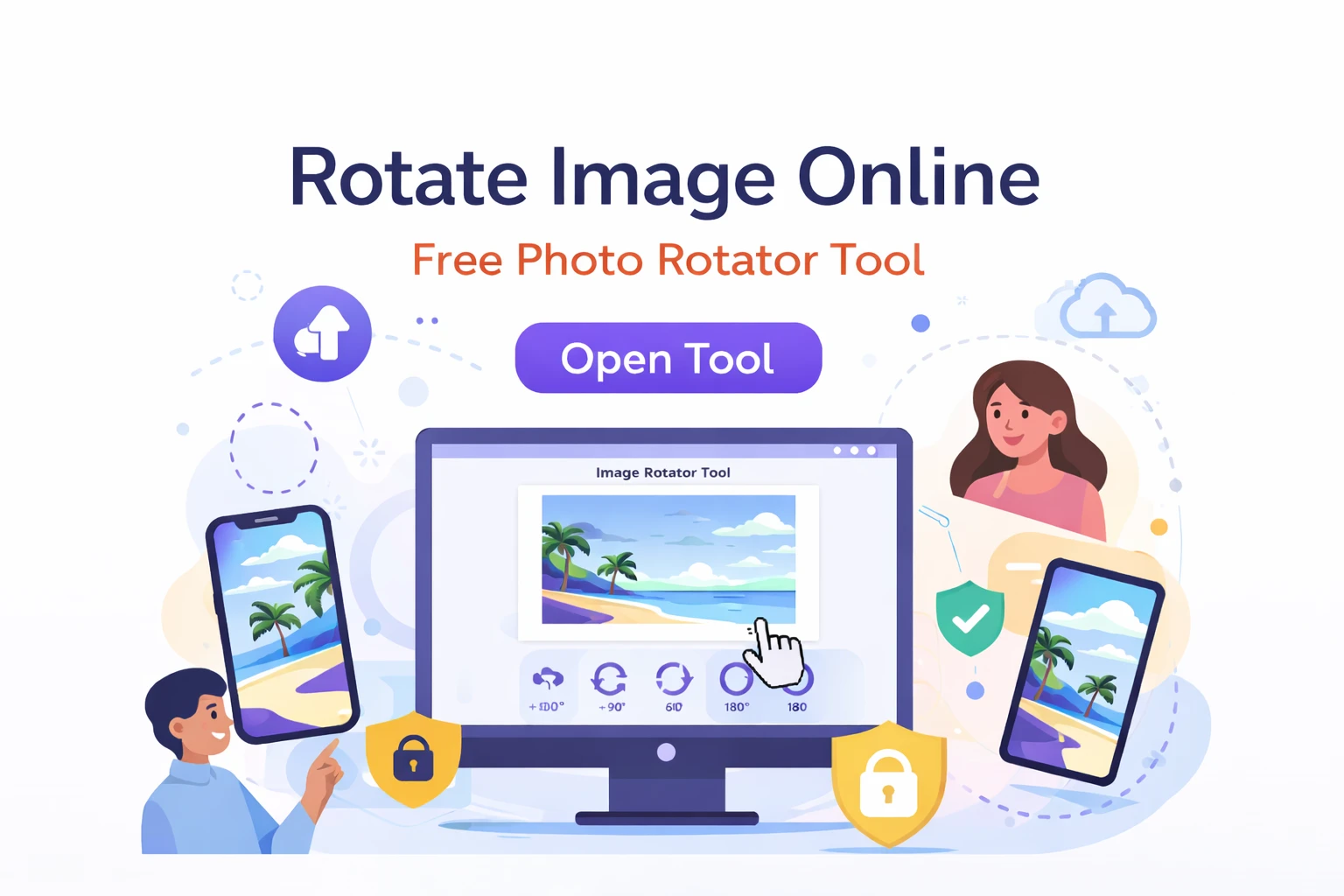
Rotate Image Online – Free Photo Rotator Tool
By Chandu | Updated on January 2026 | Free Image Tool
rotate image online is the simplest way to fix a photo that looks sideways, upside down, or just “not right” after you upload it to a website or share it on social media. This free online image rotator saves time because you can rotate your picture in the browser, preview the result, and download the corrected version without installing an app.
These problems happen for real reasons: phone cameras sometimes store orientation information that doesn’t display the same way everywhere, screenshots may be saved in a different direction, and some platforms show your image rotated even if it looks fine in your gallery. When you only need a quick correction, a full photo editor feels unnecessary. Rotate Image Online by ChanduSEOTool is built for fast fixes—upload your file, rotate left or right, rotate image 90 degrees (or 180°), adjust any angle if needed, and download a clean output.
This tool is helpful for developers, students, designers, photographers, and website owners who want a beginner-friendly way to fix orientation quickly and safely.
Table of Contents
What is Image Rotation?
Image rotation means turning an image to a new angle so it displays correctly. Unlike flipping or mirroring, rotation changes the direction the picture “faces” by turning it around a point. The most common rotations are fixed degrees, such as 90°, 180°, and 270°.
Here’s what those degrees mean in everyday terms:
- Rotate image 90 degrees: Turns the image to the side. This is common when a photo shows sideways.
- Rotate image 180 degrees: Turns the image upside down.
- Rotate image 270 degrees: Similar to 90°, but in the opposite direction.
Real-life examples where rotation helps:
- A portrait photo uploads as landscape (sideways) on a website.
- A scanned homework page is upside down.
- A product photo needs a quick correction before posting on an online store.
- A screenshot is slightly tilted and needs to be straightened using rotate image online by degree.
In short, image rotation is about making your photo look normal wherever you use it—without a complicated editing workflow.
Why Rotate Image Online?
For Photographers
Photographers often take hundreds of shots and sometimes a batch includes images with the wrong orientation. Even if the camera preview looks fine, a website export or upload can display it differently. Using rotate photo online is a fast way to correct a few images without opening heavy desktop software.
For Social Media Users
Social platforms can display images differently based on device and upload method. A photo may look correct on your phone but appear sideways on someone else’s screen. Rotate image online free is perfect when you want a quick fix before posting, especially if you are working from mobile.
For Website Owners
Website owners deal with banners, blog images, product photos, and thumbnails. A single rotated image can make a page look unprofessional. With rotate picture online, you can correct orientation quickly and keep your site visuals consistent across categories and pages.
For Students
Students frequently submit photos of notes, worksheets, diagrams, and project work. If the teacher or portal expects a clean orientation, you can rotate image online and download the corrected version before submitting. It’s also helpful on shared computers where installing software is not possible.
When the goal is “fix the direction quickly,” rotating in the browser is a practical solution—especially if you want rotate image without software and rotate image no signup.
How to Rotate Image Online
Step 1: Open Tool
Open ChanduSEOTool and go to the Rotate Image Online page. The tool works in your browser, so you can start immediately without login or installation.
Step 2: Upload Image
Upload your file from your device. The tool typically supports popular formats such as PNG, JPG, JPEG, WebP, and GIF. If you are working with a logo or image that needs transparency, use PNG when possible.
Step 3: Rotate Image (90°, 180°, left, right, any angle)
Choose the rotation option that matches your need:
- Rotate image left to turn it counterclockwise.
- Rotate image right to turn it clockwise.
- Rotate image 90 degrees if the picture is sideways.
- Rotate image online by degree if you need a specific angle like 15°, 45°, or 120°.
- Rotate image online any angle for fine adjustment when an image is slightly tilted.
If your page also offers a mirror option, use rotate image online mirror only when you want a reflected look (mirror is different from rotation).
Step 4: Preview (live preview)
Use the live preview to confirm the orientation. This step matters because “left vs right” can be confusing, and custom degrees can slightly change framing. If the image includes text, check that text appears readable before downloading.
Step 5: Download (format and quality)
When the preview looks correct, download your rotated image. The downloaded file should keep the same visual quality for normal 90°/180° rotations. If you used a custom angle, the tool may re-render the image to fit the new angle, so always check the final output once.
Extra tips:
- Keep the original file saved so you can revert if needed.
- Avoid re-editing the same file many times; repeated saving can reduce quality, especially for JPG.
- If your image is huge, resize it first to the size you actually need (for websites, this saves time and storage).
Key Features
100% Free
Rotate Image Online is made for quick, everyday use. You can rotate image online free without paying, which is ideal for students, small projects, and fast website updates.
No Signup
This tool follows a simple workflow: upload, rotate, download. You don’t need an account, which keeps the process fast and reduces friction.
Rotate by Degree
Some photos are not perfectly sideways—they are slightly tilted. Rotate image online by degree lets you fix small angle issues and straighten the photo for cleaner results.
Any Angle Support
When you need more than 90° steps, rotate image online any angle gives finer control. This is useful for scanned pages, camera tilt, and design mockups that need alignment.
Mirror Image Option
Some users want a reflection effect for designs or selfie-style looks. If your tool provides it, rotate image online mirror can create a mirrored output without needing a separate editor.
360° Rotation
Rotate image online 360 is useful when you want to confirm the tool’s preview and output behavior, or when you want to cycle through angles to find the exact look that matches your needs.
No Quality Loss
Many users worry about quality. For basic rotations like 90° and 180°, the image should keep sharpness because the content is simply turned. For custom angles, slight changes can happen because the tool must redraw pixels—so preview and download checking is important.
Mobile Friendly
Rotate image on mobile is supported as long as your browser can upload and download files. This is helpful when you need a quick fix from your phone without installing an app.
Privacy Safe
Privacy matters when you rotate personal photos or business images. Use the tool on a trusted device and network, and avoid uploading highly sensitive images to any online service. For everyday tasks like product images and notes, the workflow is straightforward and quick.
Fast Processing
Rotation is generally quick, so most images process in seconds. Large files may take longer, so resizing first can help speed up the workflow.
Rotate Image Online AI (clarification)
Some people search “rotate image online ai,” but rotation usually doesn’t require AI. It’s a simple, reliable transformation. The benefit is not “AI magic”—it’s fast, predictable results that are easy for beginners.
Common Issues & Fixes
Problem: The image is not rotating after upload.
Try refreshing the page and uploading again. Make sure the file is a supported format (PNG, JPG, JPEG, WebP, GIF). If you’re on mobile, check browser permissions for file access and downloads.
Problem: The output looks blurry.
For 90°/180° rotations, blurriness is usually not expected. If it happens, you may be zoomed in, or the original image may be low resolution. For “any angle” rotation, slight softness can occur because the image is re-rendered—try a smaller degree change or use a higher-quality original.
Problem: Large images are slow.
Very high-resolution photos can be heavy for a browser. Resize the image to the size you actually need before rotating. Also close extra tabs and try a desktop browser if mobile feels slow.
Problem: Browser error or download not working.
Disable strict ad blockers for a moment and try again. Check if your browser is blocking downloads or popups. Switching to Chrome, Firefox, or Edge can solve many download issues.
FAQs
How to rotate a picture online?
Upload your photo to Rotate Image Online, choose rotate left/right or rotate image 90 degrees, preview the result, and download the corrected image. It works directly in the browser, so it’s a quick option when you need a fast fix.
Is this tool free?
Yes. You can rotate image online free without paying or creating an account. It’s designed for simple, everyday tasks like fixing sideways photos, correcting uploads, and preparing images for websites or school work.
Can I rotate image by degree?
Yes. If you need a precise angle, use rotate image online by degree. This is useful for straightening slightly tilted photos or scanned pages. Start with small adjustments, preview, and download once it looks correct.
Will quality reduce?
For basic rotations like 90° and 180°, quality should stay very close to the original. For rotate image online any angle, the tool may redraw pixels to fit the new angle, so always check the preview and downloaded result before final use.
Can I rotate image 360?
Yes, you can rotate image online 360 by rotating in steps or using the angle control if available. This is helpful for quickly finding the right orientation or confirming how the image looks at different angles.
Is my data safe?
For best safety, use your own trusted device and internet connection. Avoid uploading highly sensitive personal images to any online service. For common photos, notes, and product images, this tool provides a quick rotate-and-download workflow.
Can I use on mobile?
Yes. You can rotate image on mobile using a modern browser. Upload the image from your phone gallery, rotate it, preview the result, and download. If your file is large, desktop may feel faster.
Do I need an account?
No. This is a rotate image no signup tool. You can open the page, upload your image, rotate it, and download immediately.
Most Useful Image Tools by ChanduSEOTool
If you frequently prepare images for websites, school work, or design projects, these tools can help you handle other tasks like flipping, resizing, cropping, and format conversion:
Conclusion
Rotate Image Online is a practical tool when your photo looks sideways, upside down, or slightly tilted. You can upload PNG, JPG, JPEG, WebP, or GIF, rotate left or right, rotate image 90 degrees, adjust any angle, preview the result, and download in seconds. It’s rotate image online free, beginner-friendly, and works with no signup—perfect for quick fixes on desktop or mobile.

Popular Tools
Recent Posts


