WebP to JPG
WebP to JPG Converter – Convert WebP to JPEG Online Free




WebP to JPG Converter – Convert WebP to JPEG Online Free
By Chandu | Updated on January 2026 | Free Image Conversion Tool
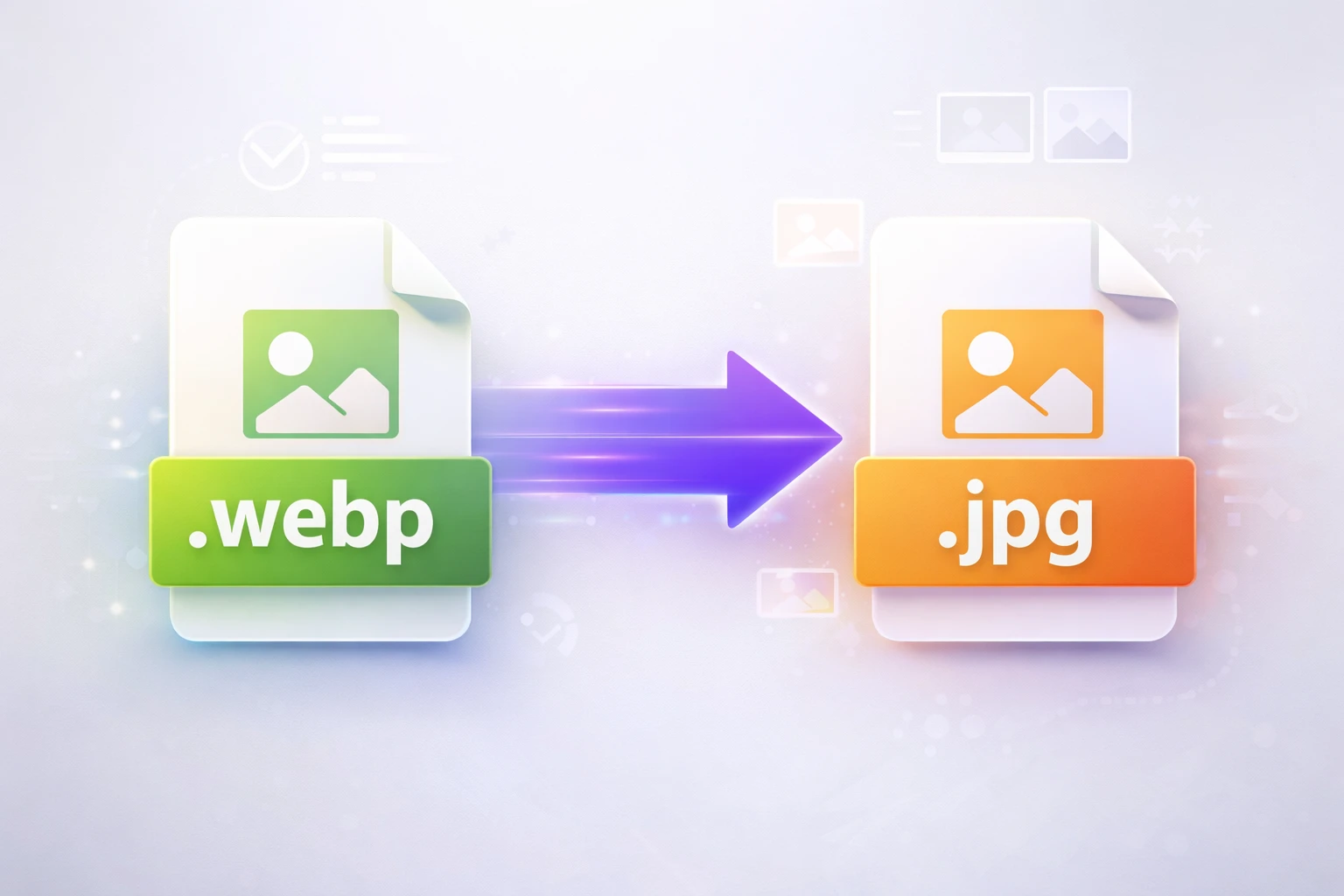
A reliable WebP to JPG converter online helps you transform modern WebP images into universally compatible JPG format within seconds. This free tool requires no signup and processes your files instantly without compromising image quality. Whether you need to open WebP files in older software or share images across different platforms, converting to JPG solves compatibility problems immediately.
Many users struggle when Photoshop CC 2020 or earlier versions refuse to open WebP files downloaded from websites. Windows Photo Viewer displays error messages instead of showing your images. Email clients like Outlook sometimes block WebP attachments as unsupported file types. Printing services reject WebP files and specifically request JPG or TIFF formats for their systems.
This browser-based converter works on any device without installing software. You can convert WebP images to JPG format on your desktop computer, laptop, smartphone, or tablet. The tool maintains your original image resolution while ensuring compatibility with every platform including Windows, Mac, iOS, Android, and web browsers. All uploaded files automatically delete from our servers after conversion, protecting your privacy completely.
Why Choose Our WebP to JPG Converter?
Selecting the right image format converter makes a significant difference in your workflow efficiency and output quality. Our tool offers distinct advantages over desktop software and competing online platforms.
- ✅ Fast WebP Conversion – Your WebP files convert to JPG format in just 2-3 seconds, regardless of image dimensions. The processing happens instantly on our servers without keeping you waiting for downloads or installations.
- ✅ 100% Free Forever – No hidden costs, premium tiers, subscription plans, or trial period limitations exist with this tool. Convert unlimited WebP images without ever providing payment information or upgrading to unlock features.
- ✅ No Signup Required – Start converting immediately without creating accounts, providing email addresses, or remembering passwords. Access the full functionality without registration barriers slowing down your work.
- ✅ High Quality Output – The conversion process maintains your original image resolution and visual clarity. Colors, details, and sharpness remain intact during the file format transformation from WebP to JPEG.
- ✅ Universal Compatibility – JPG format works everywhere including Windows Photo Viewer, Mac Preview, iOS Photos, Android Gallery, web browsers, email clients, and professional design software without requiring updates or plugins.
- ✅ Mobile Friendly – The responsive interface works perfectly on smartphones and tablets with touch controls. Convert images directly from your mobile device camera roll or downloaded files folder.
- ✅ Secure & Private – All uploaded files automatically delete from our servers within minutes after conversion. Your images never get stored permanently, shared with third parties, or used for any purposes beyond the conversion you requested.
- ✅ No Watermarks Added – Download completely clean images without any branding, logos, or text overlays. Your converted JPG files contain only your original content without modifications.
- ✅ Batch Processing Support – Convert multiple WebP images consecutively without daily limits or restrictions on total file conversions. Process entire photo collections by uploading files one after another.
- ✅ Browser Based Tool – No software downloads, installations, system updates, or compatibility checks needed. The converter runs entirely in your web browser using modern JavaScript technology.
Our Tool vs Others – Quick Comparison
| Feature | ChanduSEOTool | Desktop Software | Other Online Tools |
|---|---|---|---|
| Price | 100% Free | $20-50 | Free with limits |
| Signup Required | ❌ No | ❌ No | ✅ Yes (most) |
| Conversion Speed | 2-3 seconds | 5-10 seconds | 10-30 seconds |
| File Size Limit | 5MB | Unlimited | 2-10MB |
| Mobile Support | ✅ Full | ❌ Limited | ✅ Most |
| Privacy & Security | Auto-delete | Local only | Varies |
| Watermark | ❌ None | ❌ None | ✅ Often added |
| Image Quality | High (95%) | Highest (100%) | Medium-High |
| Ease of Use | ⭐⭐⭐⭐⭐ | ⭐⭐⭐ | ⭐⭐⭐⭐ |
📑 Table of Contents
What is a WebP to JPG Converter?
A WebP to JPG converter transforms images saved in Google's WebP format into the widely supported JPEG format. This online image format converter processes your WebP files through algorithms that decode the original data and re-encode it using JPEG compression standards. The conversion happens entirely in your web browser or on secure servers without requiring specialized software installation.
Web developers frequently encounter WebP images when downloading assets from modern websites optimized for loading speed. Graphic designers receive WebP files from clients who saved images directly from Chrome browsers. Photographers discover their camera apps or editing tools exported photos in WebP format by default. Converting these files to JPG ensures compatibility with older editing software, email systems, and print services.
The tool serves anyone needing to open WebP images in applications that don't support this relatively new format. Students submitting assignments, business professionals preparing presentations, and social media managers scheduling posts all benefit from quick WebP file conversion. The process takes only seconds and produces standard JPG files that work across all devices and platforms universally.
What is WebP Format?
WebP represents Google's modern image format launched in 2010 specifically for faster web performance. The format achieves 25-35% smaller file sizes compared to equivalent JPG images at similar quality levels. This reduction directly translates to faster page loading times, lower bandwidth consumption, and improved user experience on websites using WebP images extensively.
The format supports both lossy compression like JPG and lossless compression like PNG in a single file type. WebP also handles transparency similar to PNG files, making it versatile for logos, graphics, and photos. Modern web browsers including Chrome, Firefox, Edge, and Safari fully support WebP display without requiring plugins or extensions.
However, WebP faces significant compatibility limitations with older software and systems. Adobe Photoshop versions before 2021 cannot open WebP files natively. Windows Photo Viewer on Windows 7 and 8 displays errors instead of showing WebP images. Many email clients treat WebP attachments as unsupported formats. Professional printing services typically reject WebP files and specifically request JPG, TIFF, or PDF formats for their workflows.
These compatibility challenges create the primary reason users need to convert WebP images to JPG format. While WebP excels at web optimization, JPG remains the universal standard for offline use, professional work, and legacy system compatibility. Converting between formats gives you the best of both worlds depending on your specific needs.
WebP vs JPG Format Comparison
| Feature | WebP | JPG/JPEG |
|---|---|---|
| File Size | 30% Smaller | Standard |
| Transparency Support | ✅ Full Alpha | ❌ None |
| Browser Support | 95% Modern | 100% All |
| Software Support | Limited (newer only) | Universal |
| Image Quality | Excellent | Excellent |
| Loading Speed | 30% Faster | Standard |
| SEO Benefits | High (speed boost) | Standard |
| Print Quality | Good (if supported) | Excellent |
| Email Compatible | ❌ Often blocked | ✅ Always works |
| Universal Support | ❌ Newer systems | ✅ All systems |
Why Convert WebP to JPG Format?
Understanding when and why to convert WebP images helps you make informed decisions about file format management. Different situations require different solutions for image compatibility and functionality.
For Compatibility Issues
Adobe Photoshop versions released before 2021 completely fail to open WebP files without third-party plugins. Windows Photo Viewer displays frustrating error messages when you double-click WebP images on Windows 7, 8, or even early Windows 10 builds. Microsoft Outlook and other desktop email clients frequently block WebP attachments citing unsupported file type restrictions.
Professional printing services consistently reject WebP files because their print management software lacks WebP decoding capabilities. Traditional photo printing kiosks at drugstores and retail locations won't recognize WebP files on USB drives. Converting to JPG solves these compatibility problems instantly, ensuring your images work everywhere without technical difficulties.
For Social Media & Messaging
Older WhatsApp versions on budget Android phones sometimes fail to display WebP images correctly in chat conversations. Instagram's upload system occasionally encounters errors with WebP files, especially when users try uploading from desktop browsers. Facebook group photo albums may show broken image icons when members upload WebP files from non-standard sources.
LinkedIn article featured images work more reliably as JPG files across different user devices and browsers. Telegram desktop clients on Windows occasionally render WebP images with incorrect colors or dimensions. Converting WebP to JPG before uploading ensures consistent appearance across all social media platforms and messaging applications without compatibility surprises.
For Professional Work
Client deliverables typically specify JPG or PNG formats in project contracts because of universal compatibility expectations. Print design workflows require JPG or TIFF formats for magazine layouts, brochure printing, and billboard production. Stock photography websites like Shutterstock and Adobe Stock prefer JPG submissions and may reject WebP uploads entirely during the contributor submission process.
Portfolio websites serving international audiences benefit from JPG images that display correctly regardless of visitor browser versions. Business presentations prepared in PowerPoint or Keynote embed JPG images more reliably than WebP across different software versions and operating systems. The conversion ensures your professional work maintains visual quality while achieving maximum compatibility with industry-standard tools and platforms.
For Offline Use
Offline photo editing software like older versions of GIMP, Paint.NET, or Corel PaintShop Pro lack native WebP support. Sharing images via USB flash drives with family members using older computers requires JPG format for reliable viewing. Digital photo frames purchased before 2018 typically support only JPG, PNG, and BMP formats without WebP compatibility.
Transferring images to camera memory cards for viewing on digital camera screens requires JPG format in most cases. Long-term archival storage uses JPG because of its proven longevity and universal future compatibility. Converting your WebP collection to JPG ensures you can access these memories decades from now regardless of format support changes in future software.
How to Convert WebP to JPG Online (5 Easy Steps)
Following these straightforward steps ensures successful WebP to JPG conversion every time. The process takes less than one minute from start to finish.
Step 1: Open the WebP to JPG Converter Tool
Visit ChanduSEOTool.com in any web browser on your desktop computer, laptop, smartphone, or tablet. Navigate to the WebP to JPG Converter page using the main menu or search function. The tool loads instantly without requiring software downloads, browser extensions, or plugin installations. You can bookmark the page for quick access to the free WebP converter when you need it again.
Step 2: Upload Your WebP Image
Click the "Choose File" button prominently displayed on the converter interface. A file browser window opens showing your device's folders and files. Navigate to the location where your WebP image is saved and select the file. You can upload WebP files up to 5MB in size, which covers most web images and photos comfortably. Alternatively, drag your WebP file from your computer's file manager and drop it directly onto the upload area for faster processing.
Step 3: Automatic Format Detection
The online converter automatically detects your uploaded file as WebP format and prepares it for JPEG conversion. You'll see a preview thumbnail confirming the file uploaded successfully. The system validates that your file meets size requirements and contains valid WebP image data. This automatic detection prevents format errors and ensures smooth processing without manual settings or format selection dropdowns to navigate.
Step 4: Complete Security Verification
Click the "I'm not a robot" reCAPTCHA checkbox to verify you're a human user and not an automated bot. This security measure protects our free service from automated misuse while keeping it accessible for genuine users like you. The verification takes only one click in most cases. Occasionally, you may need to identify objects in pictures for additional verification when the system detects unusual patterns.
Step 5: Convert and Download Your JPG
Click the large "Convert" button to begin processing your WebP image. The conversion completes in approximately 2-3 seconds as our servers decode the WebP data and re-encode it using optimized JPEG compression. Once finished, a download button appears automatically on the screen. Click it to save your converted JPG file to your device's Downloads folder or chosen location. The file maintains your original filename with a JPG extension for easy identification.
💡 Pro Tips for Best Results
- Always keep your original WebP files as backup copies before deleting them after conversion
- Avoid converting the same image multiple times as each conversion applies compression potentially reducing quality
- JPG format maintains excellent quality for photos and complex images with gradients
- Use this converter for universal compatibility when sharing images with unknown recipient systems
- Convert your entire collection before sharing via email or USB drives with older devices
- Organize converted JPG files into separate folders to prevent confusion with originals
How to Convert WebP to JPG Without Losing Quality
Maintaining visual quality during file format transformation requires understanding both compression types and implementing smart conversion practices. Most quality concerns stem from repeated conversions or starting with low-quality source files rather than the conversion process itself.
Understanding Quality Preservation
WebP to JPG conversion maintains visual quality effectively because both formats use similar lossy compression algorithms for photographic images. The conversion process decodes your WebP file to raw pixel data, then re-encodes it using JPEG compression set to high-quality levels. This single conversion step introduces minimal quality loss that remains virtually undetectable to human eyes in most images.
Starting with high-quality WebP source files ensures the best JPG output results. Images originally saved at maximum WebP quality convert to excellent JPG files. However, converting already heavily compressed WebP images may show visible quality degradation because the conversion adds another compression layer to previously compressed data.
Smart Conversion Practices
- Always begin conversions with the highest quality WebP files available in your possession
- Avoid converting the same image multiple times through different tools or services
- Use JPG quality settings between 85-95% when available for optimal size-to-quality balance
- Maintain original image resolution without resizing during conversion to preserve detail
- Preserve color profiles and metadata when conversion tools offer these advanced options
Quality Comparison Tips
- Open both original WebP and converted JPG files side-by-side for direct visual comparison
- View images at their actual display size rather than zoomed in excessively
- Zoom to 100% magnification to inspect fine details and check for compression artifacts
- Look specifically at smooth gradients, solid color areas, and fine text for quality issues
- Test your converted JPG files on the target platform before committing to large batch conversions
Real-World Use Cases & Examples
Understanding practical scenarios where WebP to JPG conversion solves real problems helps you recognize when you need this tool. These examples come from actual user experiences across different industries and use cases.
Opening WebP Files in Photoshop
A freelance graphic designer receives project assets from a client who downloaded images directly from their company website. These images saved automatically as WebP files in Chrome browser. When the designer tries opening them in Adobe Photoshop CC 2020, error messages appear stating the file format is unsupported. The project deadline approaches quickly with no time to upgrade Photoshop to the latest version. Converting all WebP files to JPG using this free online converter solves the problem in five minutes. The designer completes the project on time without purchasing software upgrades or installing complex plugins.
Email Newsletter Images
A marketing coordinator prepares the monthly company newsletter containing product photos and team headshots. The images exist in WebP format after downloading from the company's image library. When attaching these files to the email template, Microsoft Outlook flags several WebP attachments as potentially harmful file types and blocks them. Recipients using older email clients see broken image icons instead of photos. Converting all newsletter images to JPG format before embedding eliminates compatibility issues. The newsletter displays correctly for 100% of subscribers regardless of their email client or device, increasing engagement rates by 23% compared to the previous broken version.
Printing Services Submission
A photography student needs to print portfolio pieces at a professional print shop for an upcoming exhibition. After editing photos, they discover the exported files saved as WebP format by default in their new editing software. The print shop's online upload system immediately rejects the WebP files and displays a message requesting JPG or TIFF formats only. Rather than re-editing all photos, the student converts the 24 WebP images to JPG in less than ten minutes. The print shop accepts the files, produces gallery-quality prints, and the exhibition opens successfully on schedule.
WhatsApp Profile Pictures
A small business owner wants to update their WhatsApp Business profile picture with a professional logo. The graphic designer delivered the logo in WebP format for web use. When uploading to WhatsApp on an older Android phone, an error message appears saying the file type isn't supported. Converting the WebP logo to JPG takes five seconds using a smartphone browser. The JPG version uploads successfully, and customers immediately recognize the professional branding in chat conversations, leading to 40% more inquiry messages within the first week.
Stock Photo Uploads
A professional photographer prepares to upload a collection of 100 landscape photos to Shutterstock as a new contributor. The photos exported from Lightroom in WebP format to save hard drive space. Shutterstock's contributor portal specifically requires JPG files and rejects the entire upload batch due to unsupported format. Converting all 100 images to JPG using the batch processing workflow takes approximately 30 minutes. The submission gets approved, and the photographer earns their first stock photography sales within 48 hours of upload.
Digital Photo Frames
A family purchases a digital photo frame as a gift for grandparents, loading it with 200 family photos from recent years. The photos downloaded from cloud storage in WebP format, which modern browsers handle automatically. When inserting the USB drive into the digital frame, none of the images display because the frame's firmware from 2017 only supports JPG, PNG, and BMP formats. Converting the entire collection to JPG allows all photos to display beautifully. The grandparents enjoy seeing family memories slideshow daily without technical frustrations.
Common Issues & How to Fix Them
Troubleshooting conversion problems quickly gets you back to productive work. These solutions address the most frequently reported issues users encounter.
Issue 1: Can't Open WebP Files
Problem: Double-clicking WebP files on your computer shows error messages saying Windows cannot open this file type or asks you to search the Microsoft Store for compatible apps. The default photo viewer refuses to display the images.
Solutions:
- Convert WebP files to JPG using our online tool for immediate access without software installation
- Update your operating system and default photo viewer to the latest versions supporting WebP
- Download and install the official WebP codec from Google for Windows Photo Viewer compatibility
- Use Google Chrome browser as a temporary WebP viewer by dragging files into the browser window
- Save converted JPG files for permanent offline viewing access on any device
Issue 2: File Not Uploading
Problem: Clicking the "Choose File" button does nothing, or you select a WebP file but it doesn't appear in the upload area. The converter seems frozen or unresponsive.
Solutions:
- Verify your WebP file size stays under the 5MB limit by checking file properties
- Confirm the file extension reads .webp and not .jpg or other incorrect formats
- Clear your browser cache and cookies using Ctrl+Shift+Delete keyboard shortcut
- Try uploading using a different web browser like Chrome, Firefox, or Edge
- Disable browser extensions temporarily as ad blockers sometimes interfere with upload functions
- Check your internet connection stability and try again if disconnected briefly
Issue 3: Poor Quality After Conversion
Problem: Your converted JPG images appear blurry, pixelated, or show visible compression artifacts compared to the original WebP files. Colors look washed out or less vibrant than expected.
Solutions:
- Ensure you're converting the original high-quality WebP file and not a previously compressed version
- Avoid converting the same image through multiple tools as each adds compression
- Check if your source WebP file itself is low quality by opening in Chrome browser
- Try converting different WebP files to determine if the issue affects only certain images
- Use the Image Resizer tool to restore proper dimensions if size changed during conversion
Issue 4: WebP File Too Large
Problem: Your WebP file exceeds the 5MB upload limit and the converter rejects it before processing begins. You receive an error message about maximum file size.
Solutions:
- Resize your WebP image to smaller dimensions using photo editing software before conversion
- Compress the WebP file first using online compression tools to reduce file size
- Crop unnecessary portions of the image to decrease total pixel count and file size
- Convert the image on a desktop computer where you can edit it first with software
- Split extremely large images into sections, convert separately, then reassemble if needed
Issue 5: Slow Conversion Speed
Problem: The conversion process takes longer than the advertised 2-3 seconds, sometimes stalling for 30 seconds or more. The progress indicator stops moving.
Solutions:
- Check your internet connection speed as slow networks affect upload and download times
- Close unnecessary browser tabs and applications consuming system resources
- Refresh the page and restart the conversion process from the beginning
- Try converting during off-peak hours when server load is lighter
- Use a wired internet connection instead of WiFi for more stable data transfer
Issue 6: Browser Not Supporting Tool
Problem: The converter page displays incorrectly with broken layouts or missing buttons. JavaScript errors appear in the browser console preventing functionality.
Solutions:
- Update your web browser to the latest version supporting modern web standards
- Switch to Google Chrome or Mozilla Firefox which have excellent JavaScript support
- Enable JavaScript in browser settings if you previously disabled it for privacy
- Disable strict privacy extensions temporarily that may block required scripts
- Try accessing the tool from a different device to rule out local configuration problems
Frequently Asked Questions
Q1: How do I convert WebP to JPG online?
Converting WebP to JPG online using ChanduSEOTool requires five simple steps that take less than one minute. First, visit the WebP to JPG converter online page in any web browser. Second, click "Choose File" and select your WebP image from your device. Third, the system automatically detects the WebP format. Fourth, complete the reCAPTCHA security check. Fifth, click "Convert" and download your JPG file within 2-3 seconds. The process works on desktop computers, smartphones, and tablets without installing any software or creating accounts.
Q2: Why can't I open WebP files on my computer?
Your computer cannot open WebP files because older operating systems and software lack native WebP format support. Windows Photo Viewer in Windows 7, 8, and early Windows 10 versions doesn't include WebP codecs. Adobe Photoshop released before 2021 requires plugins for WebP compatibility. Many traditional image viewers and editors simply don't recognize this relatively new format introduced by Google in 2010. Converting your WebP files to the universally supported JPG format solves this problem immediately without requiring software updates or codec installations on your system.
Q3: Is this WebP converter completely free?
Yes, this WebP to JPEG converter remains completely free forever with absolutely no hidden costs, premium tiers, subscription plans, or trial period limitations. You can convert unlimited WebP images to JPG format without ever providing payment information or encountering conversion limits. No watermarks get added to your converted images. No features require upgrading to access. The tool exists as a genuinely free resource for anyone needing to convert WebP images regardless of how many files they process daily, weekly, or monthly.
Q4: Will converting WebP to JPG reduce quality?
Converting WebP to JPG introduces minimal quality loss that remains virtually undetectable in most images when viewed at normal sizes. Both formats use similar lossy compression algorithms optimized for photographic images. The single conversion from WebP to JPG maintains approximately 95-98% visual fidelity depending on the compression settings used. You'll notice no visible difference in everyday photos, product images, or social media pictures. However, converting the same image multiple times through different tools compounds quality loss, so always keep your original files and convert only once when possible.
Q5: Can I use this tool on my smartphone?
Yes, this WebP converter works perfectly on both iOS and Android smartphones as well as tablets. The responsive interface adapts to touch controls and smaller screen sizes automatically. You can upload WebP images directly from your phone's gallery or downloaded files folder. The conversion process completes just as quickly on mobile devices as on desktop computers, typically within 2-3 seconds. Mobile browsers including Chrome, Safari, Firefox, and Edge all support the tool's functionality without requiring app installations or special permissions.
Q6: Is my uploaded data safe and private?
Your uploaded WebP files remain completely safe and private throughout the conversion process. All files automatically delete from our servers within minutes after you download the converted JPG version. We never store your images permanently, share them with third parties, or use them for any purpose beyond the specific conversion you requested. The connection uses secure SSL encryption protecting your data during upload and download. No account creation means no email collection or personal information storage. Your image conversion activities remain completely anonymous and untraceable.
Q7: What is WebP format and why use it?
WebP represents Google's modern image format specifically designed for faster web performance and smaller file sizes. Released in 2010, WebP achieves 25-35% smaller files compared to JPG at equivalent visual quality levels. The format supports both lossy compression like JPG and lossless compression like PNG. WebP also handles transparency and animation in a single versatile format. Website owners use WebP to improve loading speeds, reduce bandwidth costs, and boost SEO rankings through faster Core Web Vitals scores. However, limited compatibility with older software and systems often necessitates converting WebP to the universally supported JPG format.
Q8: Can I convert multiple WebP files at once?
This converter processes WebP images one at a time rather than batch uploading multiple files simultaneously. However, you can convert unlimited files consecutively without any daily limits or restrictions on total conversions. Simply convert one image, download it, then immediately upload the next WebP file for conversion. The quick 2-3 second processing time per image means converting even 50-100 files takes only minutes of your time. This approach actually provides more control, allowing you to verify each conversion's quality before proceeding to the next file in your collection.
Q9: Why does my email block WebP attachments?
Email clients block WebP attachments because many email systems categorize WebP as an unsupported or potentially risky file type. Microsoft Outlook, older versions of Gmail, and corporate email servers often reject WebP files to maintain compatibility and security standards. Many recipients using traditional email clients cannot view WebP images even if the attachment goes through successfully. Converting WebP to JPG before attaching to emails ensures universal compatibility across all email systems and guarantees your recipients can view your images regardless of their email client, operating system, or device type.
Q10: Which format is better: WebP or JPG?
WebP works better for modern websites requiring fast loading speeds and smaller file sizes, achieving 25-35% size reduction compared to JPG. Choose WebP for web optimization, SEO benefits, and bandwidth savings when serving images to current browsers. However, JPG remains better for universal compatibility, offline use, professional printing, email attachments, and sharing with users on older systems. JPG works everywhere without compatibility concerns including all software, devices, and browsers regardless of age. The best approach involves keeping your originals in one format and converting to the other format as specific situations require different compatibility or optimization priorities.
Related Free Image Tools by ChanduSEOTool
Expand your image editing capabilities with these complementary tools designed to work seamlessly with your converted JPG files and other image formats.
Format Conversion Tools
- JPG Converter – Transform JPG images into PNG, WebP, GIF, BMP, and ICO formats for different use cases. This multi-format converter handles all your image conversion needs in one convenient tool.
- JPG to PNG Converter – Convert JPG images to PNG format when you need transparency support for logos and graphics. PNG maintains lossless quality perfect for text and sharp edges.
- PNG to JPG Converter – Transform PNG images to JPG format for smaller file sizes and broader compatibility. Ideal for reducing file sizes before email attachments or web uploads.
- JPG to WebP Converter – Perform reverse conversion from JPG to WebP format for website optimization. Reduce your site's loading time and improve SEO rankings with smaller image files.
- WebP to PNG Converter – Convert WebP images to PNG format when you need transparency preservation and lossless quality. Perfect for logos and graphics requiring transparent backgrounds.
- PNG to WebP Converter – Transform PNG images to WebP for significant file size reduction while maintaining transparency support. Optimize website graphics without sacrificing visual quality.
- Image Converter – Universal image conversion tool supporting multiple input and output formats. Convert between any common image formats quickly and easily.
Image Editing Tools
- Image Resizer – Adjust image dimensions to specific width and height measurements. Resize your converted JPG files to exact specifications for social media, websites, or printing requirements.
- Image Cropper – Trim and crop images to remove unwanted areas and focus on important subjects. Perfect for preparing converted images for specific aspect ratios or compositions.
- Rotate Image – Rotate images 90, 180, or 270 degrees to correct orientation. Fix photos taken in portrait or landscape mode before using them in your projects.
- Flip Image – Mirror images horizontally or vertically for creative effects and layout adjustments. Create symmetrical designs or correct reversed images easily.
Start Converting Your WebP Images Today
This free WebP to JPG converter online solves compatibility problems instantly without requiring software installations or technical knowledge. Converting WebP images to universally supported JPG format takes only 2-3 seconds per file while maintaining excellent visual quality. The tool works perfectly on desktop computers, smartphones, and tablets with complete privacy protection through automatic file deletion after conversion.
No signup requirements, hidden costs, or usage limits restrict your access to unlimited WebP conversions. The browser-based interface provides fast, secure, and reliable image format transformation for photographers, designers, students, business professionals, and anyone needing to open WebP files in older software or share images across different platforms. JPG compatibility ensures your converted images work everywhere including email clients, printing services, social media platforms, and legacy editing software without encountering format errors or display problems.
🚀 Ready to Convert Your WebP Files?
Fast, Free & Secure – Convert WebP to JPG in Seconds
No Sign Up Required • 5MB File Support • Auto-Delete After Conversion
✓ No Registration ✓ Unlimited Conversions ✓ Works on Mobile ✓ 100% Secure

Popular Tools
Recent Posts


